
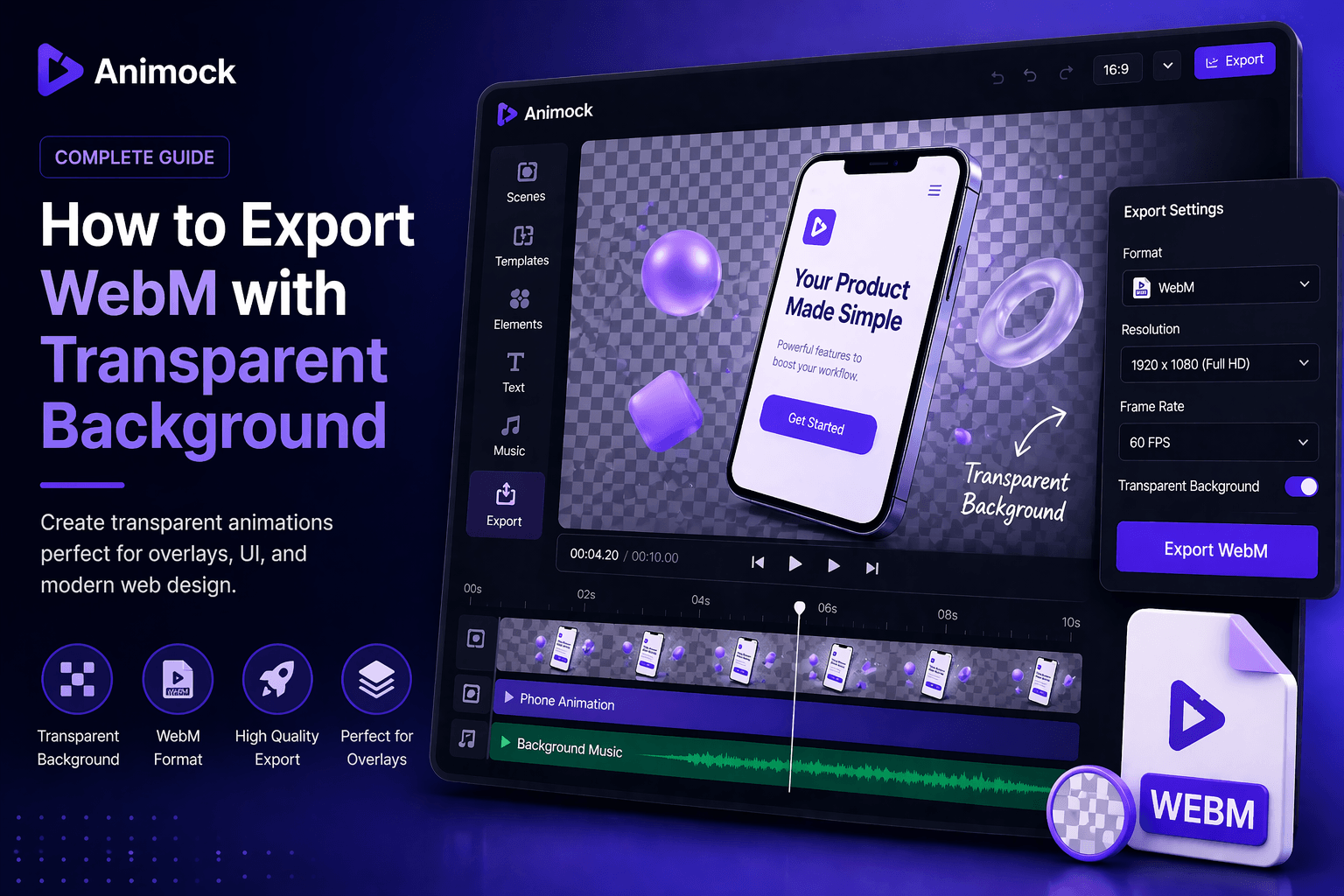
How to Export WebM with Transparent Background (Complete Guide)
Introduction
Transparent videos are essential for modern design, especially for UI animations, overlays, and web interactions. WebM is one of the few formats that supports transparency, making it a powerful choice for creators.
In this guide, you will learn how to export WebM videos with transparent background using Animock.
What is WebM with Transparency?
WebM is a modern video format that supports alpha channels (transparent backgrounds).
This means your video can be placed on top of any background without showing a solid color.
- No background color
- Seamless overlays
- Perfect for UI animations
Why Use Transparent Videos?
- Overlay animations on websites
- Create interactive UI effects
- Enhance product demos
- Use in presentations and marketing
Transparent videos make your content more dynamic and flexible.
Step-by-Step: Export WebM with Transparency
Step 1: Remove Background
Ensure your design does not include a background layer. Use transparent PNG assets where needed.
Step 2: Complete Your Animation
Finish all animation steps and preview your video.
Step 3: Open Export Settings
Click the export button to open the settings panel.
Step 4: Select WebM Format
Choose WebM as your export format.
Animock automatically enables:
- Transparent background
- Optimized encoding
- High-quality output
Step 5: Export and Download
Start export and download your WebM file once completed.
Best Practices
- Use clean edges for elements
- Avoid semi-transparent noise
- Keep animations smooth
- Test on different backgrounds
Common Issues
Background Not Transparent
Make sure no background layer exists in your design.
File Not Supported
Some platforms do not support WebM transparency — use MP4 if needed.
Large File Size
Reduce animation complexity or duration.
WebM vs MP4
- WebM: supports transparency
- MP4: universal compatibility
Use WebM when you need overlays or UI animation.
Conclusion
Exporting WebM with transparent background opens up new creative possibilities.
Start creating transparent animations with Animock today.