
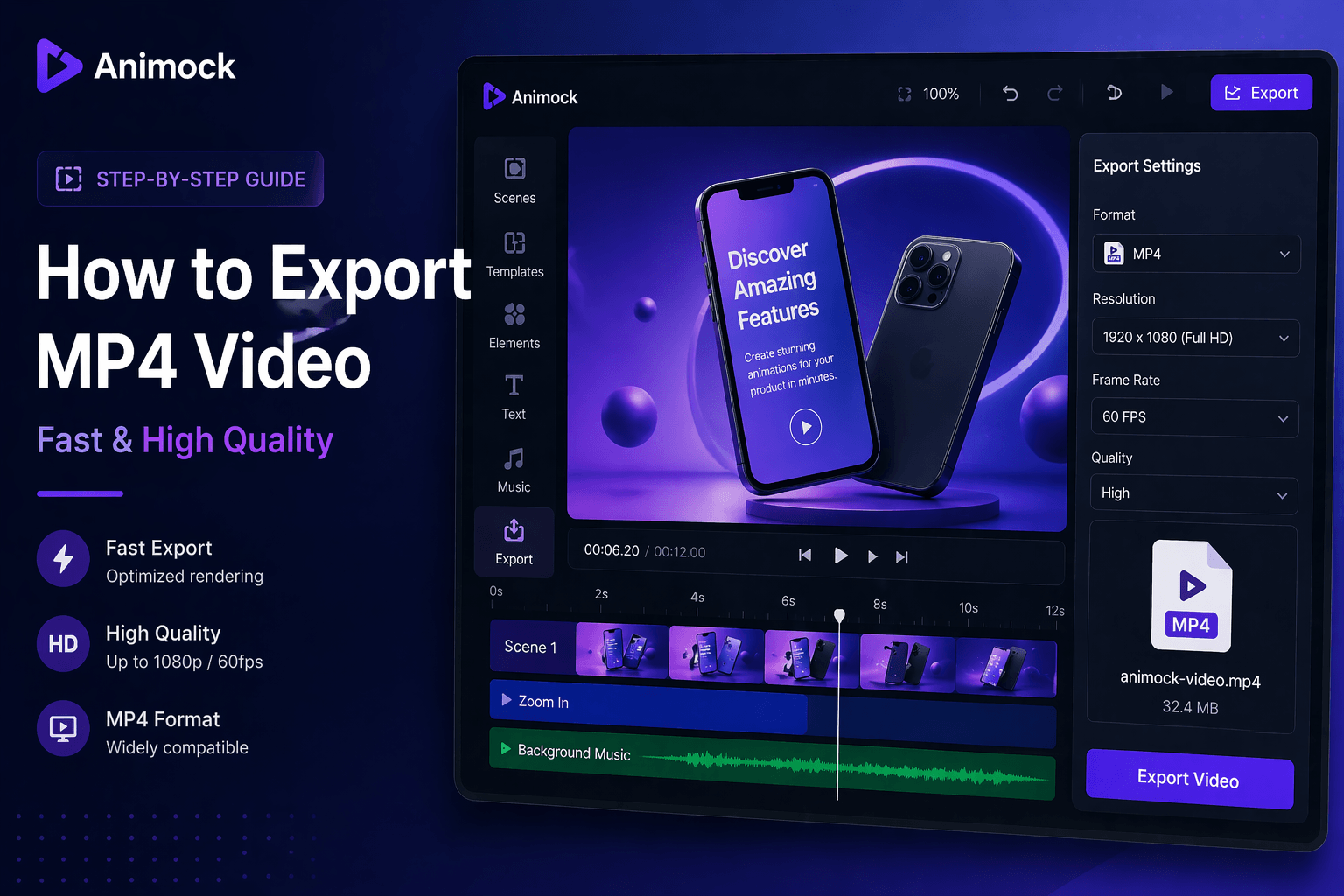
How to Export MP4 Video (Fast & High Quality Guide)
Introduction
Exporting videos in MP4 format is one of the most common needs for creators, marketers, and developers. MP4 is widely supported across platforms, making it the best choice for sharing and publishing videos.
In this guide, you will learn how to export high-quality MP4 videos using Animock quickly and efficiently.
Why Choose MP4 Format?
MP4 is the most popular video format because it offers:
- Wide compatibility across devices
- High quality with efficient compression
- Smaller file sizes
- Perfect for web, social media, and presentations
Step-by-Step: Export MP4 Video in Animock
Step 1: Complete Your Animation
Before exporting, make sure your animation is fully edited and finalized.
- Check timing
- Review animations
- Ensure all elements are aligned
Step 2: Open Export Panel
Click the export button in the editor. This will open the export settings panel.
Step 3: Select MP4 Format
Choose MP4 as your output format.
Animock automatically optimizes:
- Frame rate (60 FPS)
- Resolution (high quality)
- Encoding settings
Step 4: Start Export
Click export and wait for rendering to complete.
The process is fast and optimized for performance.
Step 5: Download Your Video
Once finished, download your MP4 video instantly.
Tips for High Quality Export
- Use high-resolution images
- Avoid excessive motion blur
- Keep animations smooth and consistent
- Preview before exporting
Common Problems and Solutions
Video Looks Blurry
Use higher resolution assets and avoid scaling up low-quality images.
Export Takes Too Long
Reduce animation complexity or check network performance.
File Size Too Large
Optimize your content and avoid unnecessary elements.
MP4 vs WebM
- MP4: best for general use
- WebM: supports transparency
Choose MP4 if you need maximum compatibility.
Conclusion
Exporting MP4 videos with Animock is fast, simple, and produces high-quality results.
Start exporting your videos now and share them anywhere.